Remote Desktop is a feature of recent versions of Windows that allows other PC users to connect to your computer and use it as if they were sitting right in front of it. The RDP protocol is a great way of giving someone access to Windows 7 if you need to troubleshoot a problem. You can only connect to the PC with the correct login username and password, but there is no harm in disabling RDP if you are not using it.
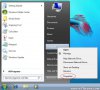
To enable or disable remote desktop, open the start menu and right click on Computer and select Properties:
![attachment.php]()
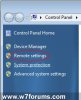
Then click Remote Settings in the left column of the control panel:
![attachment.php]()
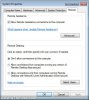
This will bring up the Remote Settings tab under System Properties. There are 3 options you can select to control the Remote Desktop settings:
![attachment.php]()
To enable or disable remote desktop, open the start menu and right click on Computer and select Properties:
Then click Remote Settings in the left column of the control panel:
This will bring up the Remote Settings tab under System Properties. There are 3 options you can select to control the Remote Desktop settings:
- Don't allow connections to this computer: This will disable remote desktop on your machine, blocking any connections
- Allow connections from computers running any version of Remote Desktop: This setting will allow computers running older versions of Windows to connect to your machine. This uses a less secure method, but may need to be enabled in some cases.
- Allow connections only from computer running Remote Desktop with Network Level Authentication (more secure): Recent versions of Windows can connect to Windows 7 using this setting, which is recommended where possible.